Have you ever finished writing an article, essay, or social media post and wondered how many words it contains? Maybe your teacher gave you a word limit, your client asked for a 1,000-word blog post, or you need to keep a caption within a certain character limit.
Whatever the reason, counting words and characters doesn’t have to be a hassle.
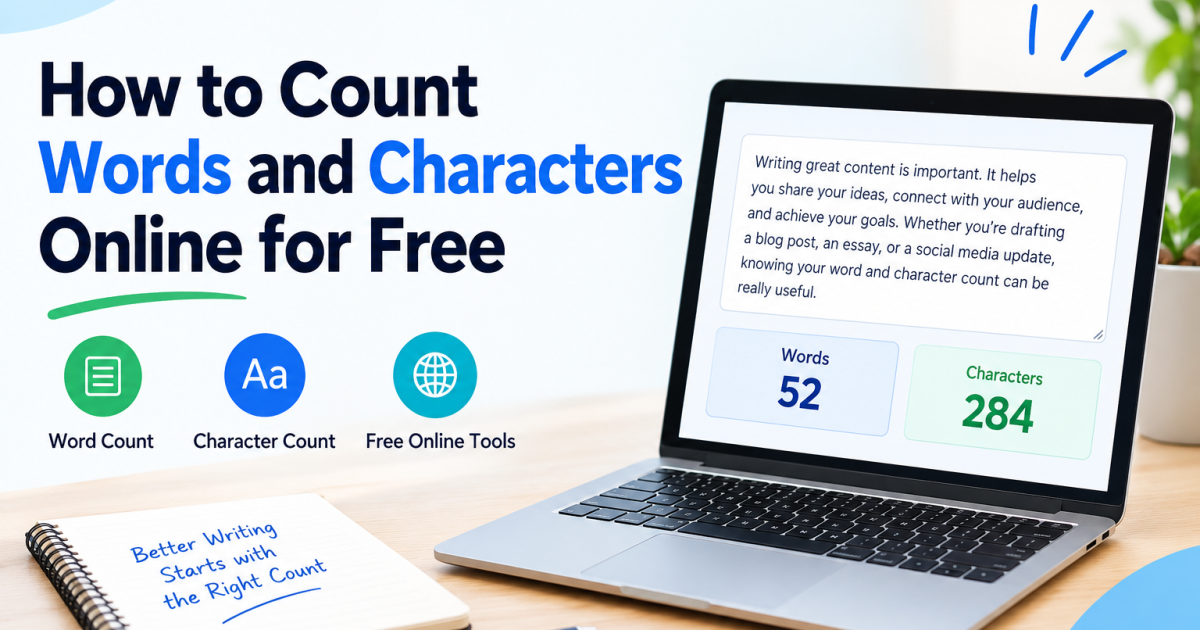
With a free online word counter, you can check the length of your text in just a few seconds. Simply paste your content into the tool, and you’ll see how many words and characters it contains. Some tools also show the number of sentences, paragraphs, and estimated reading time.
In this guide, we’ll walk through how to count words and characters online for free, explain the difference between the two, and share a few practical tips to help you get accurate results.
Table of contents
- What Is an Online Word and Character Counter?
- How to Count Words and Characters Online for Free
- Words vs. Characters: What’s the Difference?
- Why Should You Count Words and Characters?
- How to Count Words in Microsoft Word and Google Docs
- How to Count Words and Characters on Your Phone
- Tips for Getting an Accurate Word and Character Count
- Frequently Asked Questions
- How can I count words and characters online for free?
- Are free online word counters accurate?
- What is the difference between word count and character count?
- Can I count characters without spaces?
- Can I count words in a PDF file?
- Can I count words on my mobile phone?
- Do online word counters store my text?
- Is word count important for SEO?
- Do I need to install anything to count words online?
- Conclusion
What Is an Online Word and Character Counter?
An online word counter is a simple tool that tells you how long your text is. Instead of counting each word manually, you can let the tool do the work for you.
Most word counters are easy to use. You open the website, paste your text into a box, and the results appear almost immediately.
Depending on the tool, you may be able to check:
- Word count: The total number of words in your text.
- Character count: The number of characters, including or excluding spaces.
- Sentence count: The number of sentences in your writing.
- Paragraph count: The number of paragraphs in your text.
- Reading time: An estimate of how long it might take someone to read your content.
- Speaking time: An estimate of how long it might take to read your text aloud.
These features can come in handy for students, bloggers, freelance writers, teachers, and anyone who works with written content.
The best part? You can use many online word counters for free without downloading any software.
How to Count Words and Characters Online for Free
You don’t need any special technical skills to use an online word counter. If you can copy and paste text, you’re ready to go.
Here’s how it works.
Step 1: Open a Free Online Word Counter
First, visit a word counter website. Choose a tool that displays both word count and character count so you can check everything in one place.
If you regularly work with private documents, take a moment to review the website’s privacy policy before pasting your text.
Step 2: Copy the Text You Want to Check
Open the document, article, email, or social media caption you want to analyze.
Select the text and copy it.
On Windows, press Ctrl + C. On a Mac, use Command + C.
If you only need to count a particular paragraph, you don’t have to copy the entire document. Just select the section you want to check.
Step 3: Paste Your Text into the Tool
Go back to the word counter and click inside its text box.
Press Ctrl + V on Windows or Command + V on a Mac to paste your text. You can also type directly into the box if you’re working with a short piece of writing.
Step 4: Check Your Word Count
Once your text appears in the box, the tool will usually calculate the number of words automatically.
For example, if you’ve written a blog post containing 850 words, the counter may display a word count of 850.
Keep in mind that results can vary slightly between tools because they don’t all treat hyphenated words, contractions, and numbers in exactly the same way.
Step 5: Check Your Character Count
Next, look at the character count.
Some tools show two separate numbers:
- Characters including spaces
- Characters excluding spaces
This distinction matters when you’re working with a strict character limit. Always check which measurement your assignment, form, or publishing platform requires.
Step 6: Review the Other Statistics
If your word counter provides additional details, take a look at the sentence count, paragraph count, and estimated reading time.
These numbers can help you understand the structure of your writing and spot areas that may need editing.
Step 7: Make Changes if Necessary
Suppose your assignment requires 1,000 words, but your draft contains only 750. You can expand your explanation with useful details or examples.
On the other hand, if your article is too long, remove unnecessary repetition and tighten up wordy sentences.
After editing, check the count again. Most online counters update automatically, so you can see the results without starting over.
Words vs. Characters: What’s the Difference?
Word count and character count measure two different things.
A word is generally a unit of text separated from other words by spaces or punctuation. A character is an individual letter, number, punctuation mark, space, or other text symbol, depending on the counting method.
Let’s look at a quick example.
Sample text: Hello world!
Here’s how the counts break down:
| Measurement | Result |
| Word count | 2 |
| Characters including spaces | 12 |
| Characters excluding spaces | 11 |
The text contains two words: “Hello” and “world.”
When counting characters, we include the letters, the space between the words, and the exclamation mark. That’s 12 characters in total. Remove the space, and the count becomes 11.
What Does Character Count Including Spaces Mean?
This measurement includes everything in the text, including spaces between words.
It’s useful when you need to know the full length of a piece of text, particularly when a form or platform specifies a character limit that includes spaces.
What About Character Count Without Spaces?
This measurement excludes spaces but generally includes letters, numbers, and punctuation.
For example, it can help you check a writing requirement that specifically asks for characters without spaces.
Why Can Different Tools Show Different Results?
You might occasionally notice that two word counters give you slightly different numbers for the same text.
This can happen because of hyphenated expressions, contractions, numbers, emojis, and special characters.
For example, one tool might count “user-friendly” as one word, while another may treat it differently.
If you’re submitting an assignment or preparing content for a platform with specific rules, follow its official counting method rather than relying on a general estimate.
Why Should You Count Words and Characters?
Checking your word and character count can save time and help you meet writing requirements. Here are a few everyday situations where a word counter is useful.
For Students and Assignments
Students often have to write essays, reports, and assignments within a particular word limit.
A word counter makes it easy to check whether you’ve written enough without going over the required length.
For instance, if your teacher asks for a 1,000-word essay, you can check your draft before submitting it.
Just remember to check whether your institution includes headings, references, footnotes, or appendices in the final count.
For Bloggers and Content Writers
If you write blog posts regularly, a word counter can make your editing process easier.
You can check whether an article meets a client’s requirements, follows an editorial brief, or fits your planned content structure.
However, don’t add unnecessary paragraphs just to make an article longer. A useful 800-word article can be more valuable to readers than a repetitive 1,500-word one.
For Social Media Posts
Some social media platforms limit the length of certain posts, captions, or profile fields.
A character counter helps you check your text before publishing, so you can avoid last-minute editing.
Because platform limits can change, it’s always worth checking the current requirements for the specific field you’re using.
For Emails and Business Messages
Nobody wants to spend several minutes reading an email that could have been explained in a few sentences.
Checking the word count can help you spot unnecessary details and make your message easier to follow.
This is particularly helpful when writing business emails, project updates, proposals, or short professional summaries.
For Freelance Writers
Freelance writers often receive assignments with specific word counts.
Before sending a finished article to a client, you can use a word counter to check its length and make sure it meets the brief.
If you’re paid by the word, confirm the client’s counting rules first. Different clients may have different ways of calculating billable words.
For Online Forms and Applications
Some websites limit how much text you can enter into a description box, application form, or profile field.
Checking the character count beforehand can help you avoid exceeding the limit and having to rewrite your answer.
How to Count Words in Microsoft Word and Google Docs
You don’t always need a separate website to count words. If you’re already using a document editor, you can usually find the information there.
How to Check Word Count in Microsoft Word
Microsoft Word includes a built-in word-count feature.
Follow these steps:
- Open your document in Microsoft Word.
- Look for the word count in the status bar at the bottom of the window.
- If you can’t see it, click the Review tab.
- Select Word Count to view more detailed statistics.
Depending on your version, you may see the number of pages, words, characters with spaces, characters without spaces, paragraphs, and lines.
Need to count just one section? Select the relevant text first, then check the word count for that selection.
How to Check Word Count in Google Docs
Google Docs also makes it easy to check the length of your writing.
Here’s what to do:
- Open your document in Google Docs.
- Click Tools in the top menu.
- Choose Word count.
- Review the word and character totals shown in the dialog.
You can also use a keyboard shortcut. On many Windows and ChromeOS setups, press Ctrl + Shift + C. On a Mac, press Command + Shift + C.
Google Docs may also let you display a live word count while you type.
Should You Use a Built-In Counter or an Online Tool?
Both options work well, but the right choice depends on what you’re doing.
If you’re already writing in Microsoft Word or Google Docs, the built-in counter is convenient. If you just need to check a paragraph, caption, or block of copied text, an online word counter may be quicker.
How to Count Words and Characters on Your Phone
You don’t need a computer to check your word count. Most modern smartphones can handle the task through a browser or a compatible writing app.
On Android
- Open the text you want to check.
- If your writing app has a word-count feature, use it.
- Otherwise, open your mobile browser.
- Visit a free online word counter.
- Paste your text into the input box and review the results.
On iPhone or iPad
The process is much the same on Apple devices.
Open a compatible writing app or visit a word counter website through your browser. Paste your text into the tool and check the word and character totals.
The exact steps may vary depending on the app and browser you’re using.
Why Use a Word Counter on Mobile?
A mobile word counter is handy when you’re writing a quick email, preparing a social media caption, or checking an assignment while away from your computer.
For longer documents, you may still find it easier to edit and organize your text on a desktop or laptop.
Tips for Getting an Accurate Word and Character Count
Most word counters are straightforward, but a few small details can affect the result.
Keep these tips in mind when checking your text.
Check Whether Spaces Are Included
This is especially important when working with character limits.
If a form asks for a maximum number of characters, confirm whether spaces count toward that limit before editing your text.
Make Sure You’re Counting the Right Text
Some assignments exclude references, footnotes, or appendices from the total. Others include headings and captions.
Before checking your word count, find out which parts of the document are supposed to count.
Watch Out for Hyphenated Words
Words such as “long-term,” “easy-to-use,” and “user-friendly” may be counted differently by different tools.
If you need to meet a strict word limit, use the counting method specified in your instructions.
Pay Attention to Special Characters and Emojis
Punctuation, numbers, symbols, and emojis can affect character counts.
Some visible symbols, particularly certain emojis, are made up of multiple Unicode code points or code units. Because of this, a symbol that looks like one character may be counted differently by different tools.
Remove Extra Spaces
Accidental spaces can make your text look untidy and may affect the character total.
Before submitting your work, check for repeated spaces, unnecessary blank lines, and spaces at the beginning or end of your text.
Choose a Tool That Respects Your Privacy
If you’re checking confidential documents, private messages, or unpublished business content, think carefully before pasting the text into an unfamiliar website.
Some tools process text directly in your browser, while others send it to a server. Check the website’s privacy policy and use a tool with suitable data-handling practices.
Focus on Clear, Useful Writing
A word count is only a measurement. It doesn’t tell you whether your writing is good.
Instead of adding words to reach an arbitrary target, focus on answering the reader’s questions, explaining important points, and removing unnecessary repetition.
Frequently Asked Questions
How can I count words and characters online for free?
Visit a free online word counter and paste your text into the input box. The tool will usually display the word count and character count automatically. Some tools also provide sentence count, paragraph count, and estimated reading time.
Are free online word counters accurate?
Most reliable word counters provide a useful count, but results can vary depending on how the tool treats hyphenated words, contractions, emojis, and special characters. If you need an exact count for an official submission, follow the relevant counting rules.
What is the difference between word count and character count?
Word count tells you how many words your text contains. Character count measures individual characters, including letters, numbers, punctuation, and sometimes spaces, depending on the selected counting method.
Can I count characters without spaces?
Yes. Many online word counters show separate totals for characters with spaces and characters without spaces. Simply select or read the appropriate measurement.
Can I count words in a PDF file?
Yes, if the PDF contains selectable text. Copy the text and paste it into an online word counter.
If the PDF consists of scanned pages, you’ll generally need an OCR tool to convert the images into selectable text first.
Can I count words on my mobile phone?
Absolutely. You can use a mobile browser to access an online word counter or use a writing app that includes a word-count feature.
Do online word counters store my text?
It depends on the website. Some tools process text locally in your browser, while others may transmit or store submitted content. Check the privacy policy before entering confidential or sensitive information.
Is word count important for SEO?
Word count can help you follow an editorial brief and organize your content, but there is no universal ideal article length that guarantees higher Google rankings.
For SEO, focus on creating original, helpful content that addresses the reader’s search intent. Make sure the article answers the question clearly instead of adding unnecessary text to reach a particular number of words.
Do I need to install anything to count words online?
No. Most browser-based word counters work without any installation. Open the website, paste your text, and check the results.
Conclusion
Counting words and characters is a small task, but it can make writing much easier.
Whether you’re working on a school assignment, writing a blog post, preparing a social media caption, or sending a professional email, a free online word counter helps you check your text in seconds.
You can also use built-in tools in Microsoft Word and Google Docs or check your text directly from your phone.
Just remember to check whether spaces are included, pay attention to special characters, and follow any word-count rules that apply to your work.
Want to check your text right now? Use a free online word counter, paste your content, and find out how many words and characters you’ve written in just a few seconds.